A very easy to use Syslog server for troubleshooting hard issues that have syslogging capabilities.
Listens on port 514 TCP/UDP by default.
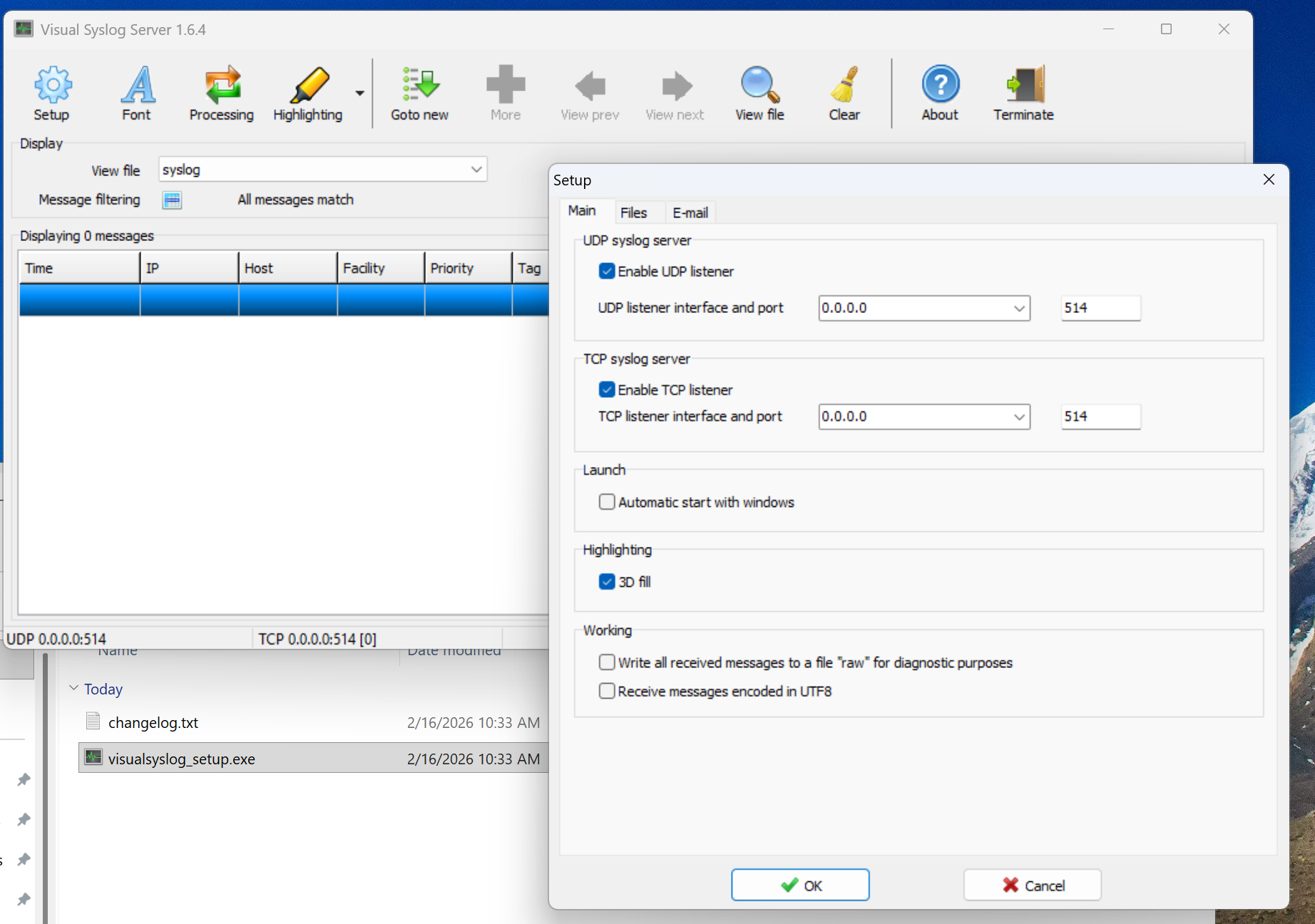
To install as a service Credit: https://github.com/MaxBelkov/visualsyslog/issues/14
How to install it as a service?:
- Download and install "Visual Syslog Server for Windows".
- (Configure and test your setup. You can use "Kiwi SyslogGen" to test ist.)
- Terminate any running "Visual Syslog Server"-Process (Closing! not just hidding in the taskbar)
- Download "NSSM: the Non-Sucking Service Manager" and unzip the "win64/nssm.exe" to any path like "C:\Program Files\Non-Sucking Service Manager\nssm.exe"
- Open a Elevated Command Prompt and type in:
"C:\Program Files\Non-Sucking Service Manager\nssm.exe" install "Visual Syslog Server"- The "NSSM service installer" should now open. Configure it with the following settings:
Application -> Path: "C:\Program Files (x86)\visualsyslog\visualsyslog.exe"Application -> Startup directory: "C:\Program Files (x86)\visualsyslog"Details -> Display name: "Visual Syslog Server"Details -> Startup type: "Automatic"Log on -> This account: <your current username such as Administrator>Log on -> Password: <your password>Log on -> Confirm: <your password>
and leave the other settings unchanged.- Confirm it with "Install service"
- Now go to your services and start "Visual Syslog Server"
- Your Syslog Service is now up and running!
How to open the management GUI?:
when you open up your "Visual Syslog Server"-shortcut you will notice that port errors occur. (Like "Error udp: Address or port is already in use [udp port 514]").
This is because the program is already running in the background and the ports are in use accordingly.
You can ignore the error messages and still open up the management GUI.
If you change any configuration you will need to terminate your management GUI and restart the "Visual Syslog Server"-service.
Any tips in the productive environment in terms of security?:
I prefer to run it as its own user (without administrator rights).
Stop the "Visual Syslog Server"-service.
Create a new user with a secure password and edit the "Visual Syslog Server"-service with"C:\Program Files\Non-Sucking Service Manager\nssm.exe" edit "Visual Syslog Server"
Edit the "Log on -> This account, Password and Confirm" setting to the newly created user.
Start the "Visual Syslog Server"-service and stop it right away.
Copy the configration files from"%localappdata%\visualsyslog"toC:\Users\<new user>\AppData\Local\visualsyslog
Start the "Visual Syslog Server"-service.
(Mind: If you have setup "write to file" in the settings, check whether the new user has write/read rights to the directory/file)
Repeate the "copy the configration files"-step each time you edit your settings.
Was this article helpful?
That’s Great!
Thank you for your feedback
Sorry! We couldn't be helpful
Thank you for your feedback
Feedback sent
We appreciate your effort and will try to fix the article